Teams & targets
Users, teams and targets all live under Settings > People. Users is who has access. Teams is who reports to whom, which is what makes coaching and manager reporting work. Targets is what each rep is aiming at each week.
Where to find them
Settings has one navigation. Open Settings > People and you get three sub-views: Users, Teams, and Targets. Each is its own page with its own URL, so you can link a colleague straight to the one you mean.
Users and roles are covered separately in Users & roles. This article covers the other two.
Teams
A team is a manager plus the reps who report to them. It is not a permissions boundary and it does not change what anyone can send. It answers one question: whose work does this manager see?
Creating a team
The Teams page opens with the New team form at the top, because creating one is the reason most people arrive. Give the team a name, choose the manager, tick the members, and save. Existing teams sit underneath, collapsed, so a workspace with four teams is still one readable screen. Click a team to expand and edit it.
What teams unlock
- Coaching Corner. A manager sees the work and coaching of their team members and nobody else. A manager with no team sees an empty page. See Coaching Corner.
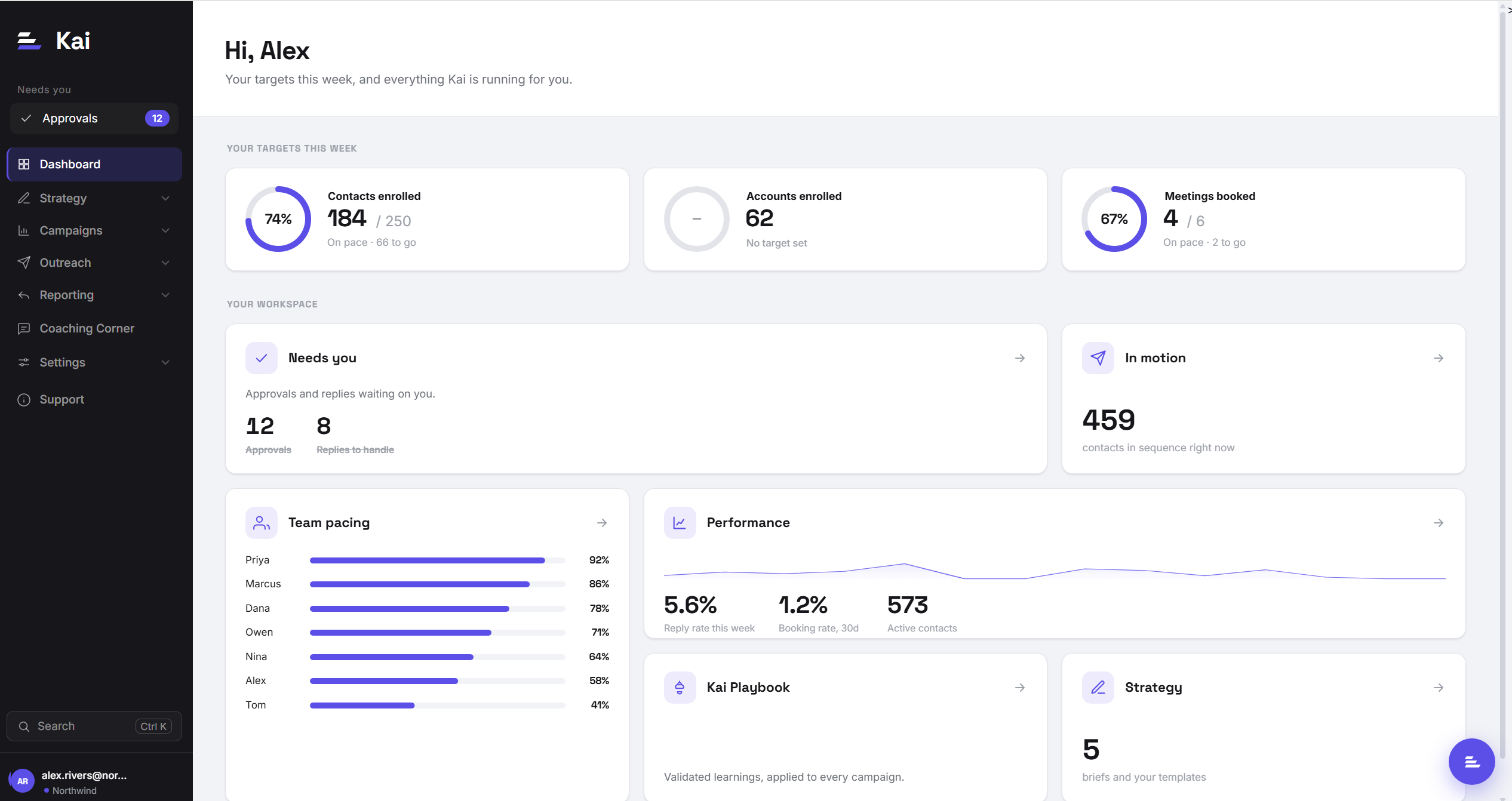
- Team pacing on the dashboard. The dashboard shows each rep's progress against their weekly target as a single bar per person.
- Team campaigns. Reusable campaign setups that route contacts to the reps on a roster. See Team campaigns.
Admins and superadmins see the whole workspace regardless of teams, so you do not need to add an admin to a team to let them look.
Targets
Targets are per rep, per week, and there are three of them:
- Contacts enrolled. The rep's contacts injected into a sequence this week.
- Accounts enrolled. The distinct accounts behind those contacts. The one to set for account-based work, where twenty contacts at three accounts is a different week from twenty contacts at twenty accounts.
- Meetings booked. Replies the rep marked as a booked meeting this week.
Set them on Settings > People > Targets. Leave a metric blank and it simply is not tracked for that rep: the dashboard shows "No target set" rather than a zero, because those are different facts.
How pace is calculated
The week runs Monday to Monday. Pace compares how far through your target you are against how far through the week you are, not against the target alone. A rep who is 60% to target on a Thursday morning is behind, because roughly 60% of the week has gone but the remaining days are shorter than they look. A rep at 60% on Tuesday is ahead.
This is why the dashboard says "On pace" rather than showing a bare percentage. A percentage on its own is unreadable without knowing what day it is.
Setting targets that work
- Set the input, not just the outcome. Meetings booked is the outcome and a rep only partly controls it. Contacts enrolled is the input they fully control. Set both and you can tell an effort problem from a quality problem.
- Start from last month's actuals. Open Reporting, look at what the rep actually did over four weeks, divide by four, and set slightly above it. A target nobody has ever hit is ignored within a fortnight.
- Do not set all three for everyone. An account-based rep should be measured on accounts, not contacts. Setting all three makes two of them noise.
Who can change these
Managing teams and targets requires a manager, admin, or superadmin role. A standard seat can see their own targets on their dashboard but cannot set them, and cannot see another rep's. Roles are covered in Users & roles.