Users & roles
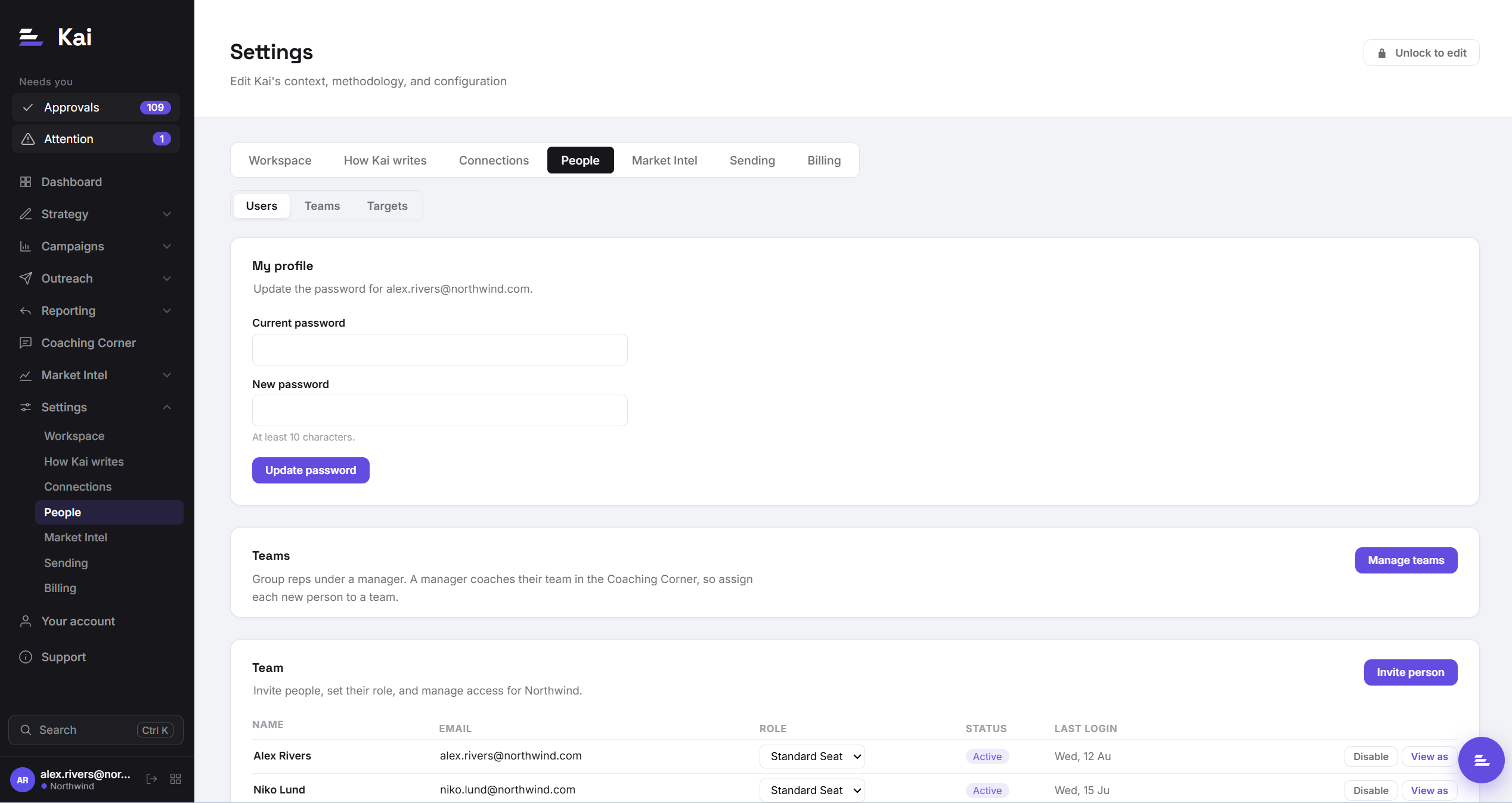
Every person on your team gets their own login with a role that controls what they can see and do. Team management lives in Settings → People.
The three roles
- Admin has full workspace control: inviting people, changing roles, connections, billing, and everything below. The person who creates the workspace is its first admin.
- Manager sees everything across the workspace: all leads, all campaigns, all replies, full reporting, with an owner filter to slice by rep. Managers can reassign leads between people. They cannot invite users, change roles, or touch billing; those are admin actions.
- Standard Seat is the rep role, built around one idea: your leads, your pipeline. A standard seat sees only the leads assigned to them, everywhere in the product: their Approvals queue, their In Sequence list, their Replies, their dashboard numbers, and even the sidebar badge counts. When a rep sees "Approvals: 12", those are twelve sequences waiting for their review, not the team's.
Inviting people
Admins invite from Settings → People → Invite person: enter their name, email, and role, and Kai sends an activation email. The person sets their own password from the link. Invites that have not been activated show as Invited in the team list, where you can resend the email or remove the invite entirely.
Changing roles
Admins can change anyone's role from the dropdown in the team list. Changes take effect on the person's next page load. Promoting a rep to Manager instantly gives them the cross-team view; demoting works the same way in reverse.
When someone leaves
People are disabled, not deleted. A disabled user cannot log in, but their history stays intact: the leads they worked, the sequences they approved, and your reporting all keep their attribution. When you disable someone who still owns active leads, Kai offers to reassign those leads to another team member as part of the same flow, so no contact is left mid-sequence without an owner. You can also reassign later at any time from the Reassign leads section.
The one exception is invites that were never activated: those can be removed outright, since there is no history to preserve.
Roles and your plan
Plans include a set number of admin and standard seats (see Billing & plans). Managers count as admin seats for billing purposes. Pending invites occupy a seat until removed.