Team campaigns
A team campaign is a ready-made campaign setup that a whole team can run from, without each rep rebuilding it. A manager assembles the program once: the campaign type, the brief, how contacts are sourced, and the settings. Reps pick it off the shelf, add their own outreach campaign, and start working their own contacts. Every rep runs the same program, but each sends through their own inbox and owns their own leads.
Programs versus single campaigns
A single campaign is one rep's campaign: they create it, source contacts, and run it. That flow is covered in Creating a campaign and is unchanged.
A program is different. It is a reusable setup that lives at the workspace level, so every rep in the workspace can see it and use it. It carries everything a campaign needs except the one thing that has to be personal: the outreach campaign each rep sends through. That is why a program is not a set of campaigns pre-built for people. It is a template reps complete with their own outreach campaign and their own contacts.
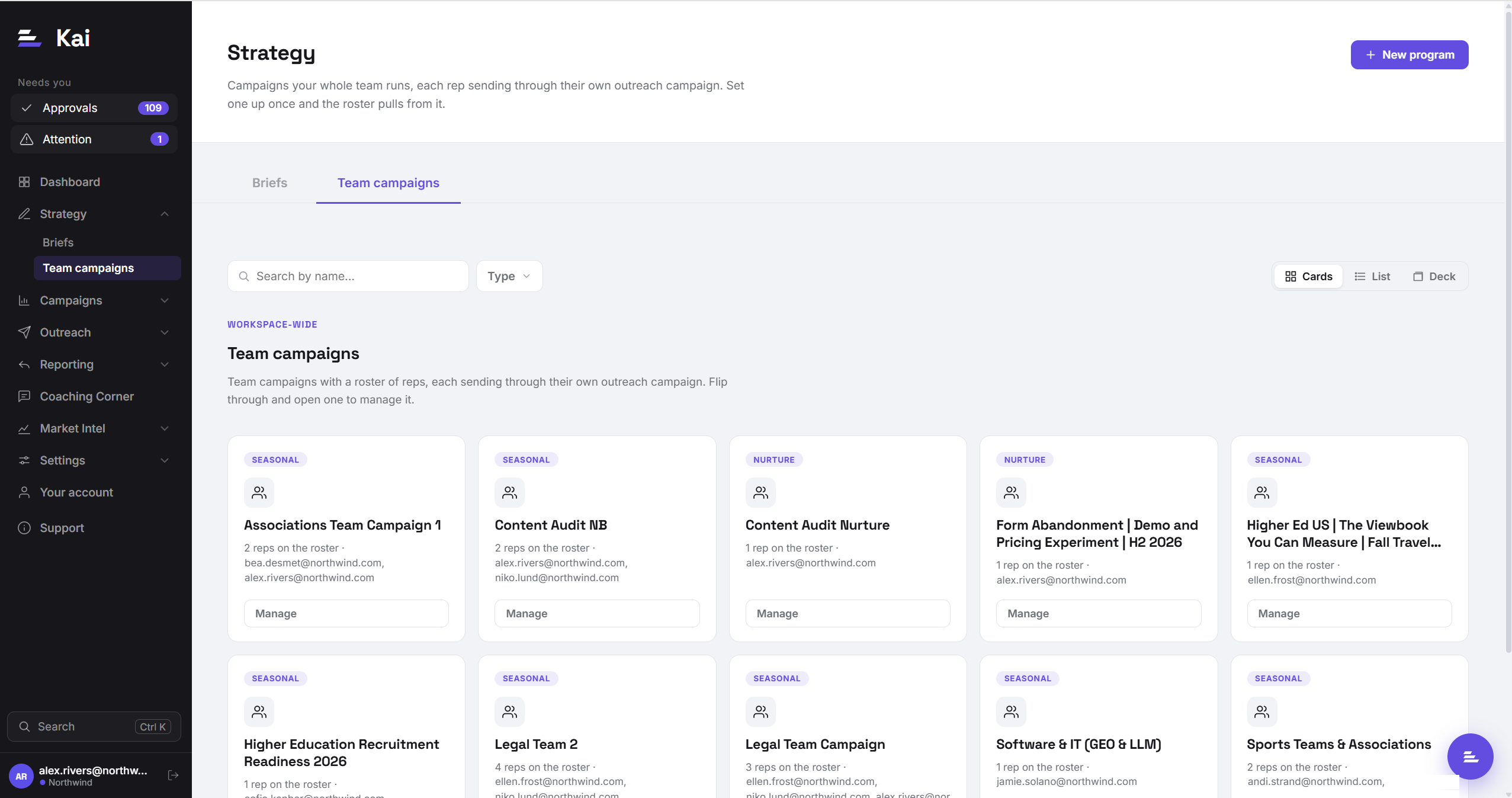
Programs live under Strategy → Team campaigns, alongside Briefs. Both are reusable building blocks, which is why they sit in Strategy rather than in the Campaigns section where individual campaigns live. A program can reference a brief, but the two are separate things: a brief is what Kai says, a program is how a team runs it.
The two ways a program gets used
Programs support two working styles. You do not choose one when you build the program; they are just the two ways reps end up on the roster.
Rev-Ops sets it up for the team
A manager builds the program and pre-loads the roster: one row per rep, each with that rep's outreach campaign. When contacts are uploaded to the program, Kai distributes them across the roster and routes each contact through the owning rep's outreach campaign automatically. Reps do not have to do any setup; they just start reviewing the sequences Kai writes for the contacts assigned to them. Use this when RevOps drives the motion and wants every rep working from an identical, centrally managed setup.
A rep serves themselves
A rep starts a new campaign, picks a program from the template list instead of a plain brief, and joins it with their own outreach campaign. They then bring their own contacts, either by pulling from a HubSpot list or uploading their own file, and those contacts are assigned to them. Use this when reps run the same program at their own pace and manage their own book. Joining adds the rep as a new row on the same shared program; it does not create a private copy.
Building a program (managers)
In the left navigation, open Strategy and click Team campaigns. You will see every program in the workspace. If there are none yet, the page shows an empty state. Managers see a New team campaign button.
Click New team campaign, give it a name your team will recognise, and set the campaign type and brief. The program carries the type, the brief, the contact-source defaults, and the campaign settings so every rep runs from the same definition.
On the program page, add each rep and their outreach campaign using Add rep. This roster is the routing map: it tells Kai whose inbox each contact should send through. The outreach campaign is per rep by design, since every rep has their own sender and their own sequence in the outreach platform.
Under How reps get their contacts, pick whether the program sources from one HubSpot list shared across the team, or a list per rep. A per-rep list lets each person work their own accounts; a shared list works when the whole team draws from the same pool. See Uploading contacts for the list options.
Joining a program (reps)
If your manager has pre-loaded you onto a program's roster, there is nothing to join: contacts assigned to you appear in your Approvals queue automatically. If you are serving yourself, here is the flow.
Begin a new campaign as normal. At the step where you pick a brief, choose a program from the template list instead. Picking a plain brief gives you the ordinary single-campaign path; picking a program routes you into it.
Join the program with your own outreach campaign. This adds you as a row on the program's roster with your outreach campaign, so anything you run sends through your inbox and stays owned by you.
Use Your contacts on the program page to upload your own file, or pull from the program's HubSpot list. Everything you add is assigned to you, kept separate from the rest of the team's contacts on the same program.
How contacts route to the right rep
When contacts enter a program, Kai decides whose outreach campaign each one sends through in one of two ways. If the uploaded file has a contact-owner column, that owner wins and the contact routes through their campaign. If there is no owner column, Kai distributes contacts across the roster, giving each new contact to the rep with the lightest load so the work spreads evenly. A rep uploading their own contacts through Your contacts always owns everything in that upload.
Sequences can differ per rep
Because each rep runs through their own outreach campaign, each rep's sequence steps come from their own campaign in the outreach platform. Kai pulls and maps steps per rep at the point their outreach campaign is added. In practice most teams keep their sequences aligned, but the program does not force every rep to have an identical step structure. If a rep changes their sequence in the outreach platform, they should pull the latest steps again so Kai's tokens match, exactly as with a single campaign. See Creating a campaign for how pulling steps works.
Editing a running program
Managers can add or remove reps from the roster at any time from the program page. Removing a rep stops new contacts routing to them; contacts they already own are unaffected. Changing the brief or settings on a program applies to sequences generated after the change, not to sequences already written and approved. As with any campaign, regenerate a contact if you want it rewritten against updated instructions.