Connecting your stack
Kai is bring-your-own by design: it orchestrates your existing tools rather than replacing them. Before your first campaign you connect four categories of tools in Settings → Connections. Each category is an accordion; open it, paste the key, save, and the status pill flips to Connected.
The four categories
- AI provider powers research synthesis, sequence writing, and reply classification. Kai supports Anthropic (Claude), OpenAI, Google Gemini, Mistral, and Azure OpenAI. You bring your own API key, so your prompts and data run on your account, under your terms.
- Outreach & execution is where sequences actually send. Kai integrates with Lemlist, Instantly, Smartlead, Reply.io, Apollo, Outreach, Salesloft, HubSpot Sequences, and Salesforce Sales Engagement. Capabilities differ per platform: some support email, LinkedIn, and call steps; others are email-only. The Connections tab notes what each supports.
- CRM receives the handover when a prospect raises their hand: HubSpot, Pipedrive, Salesforce, or Attio. Kai creates or updates the contact and opens a deal in your pipeline.
- Sourcing & research is how Kai learns about accounts and finds contacts. Firecrawl powers website research and news scanning; contact discovery uses your outreach platform's database where available.
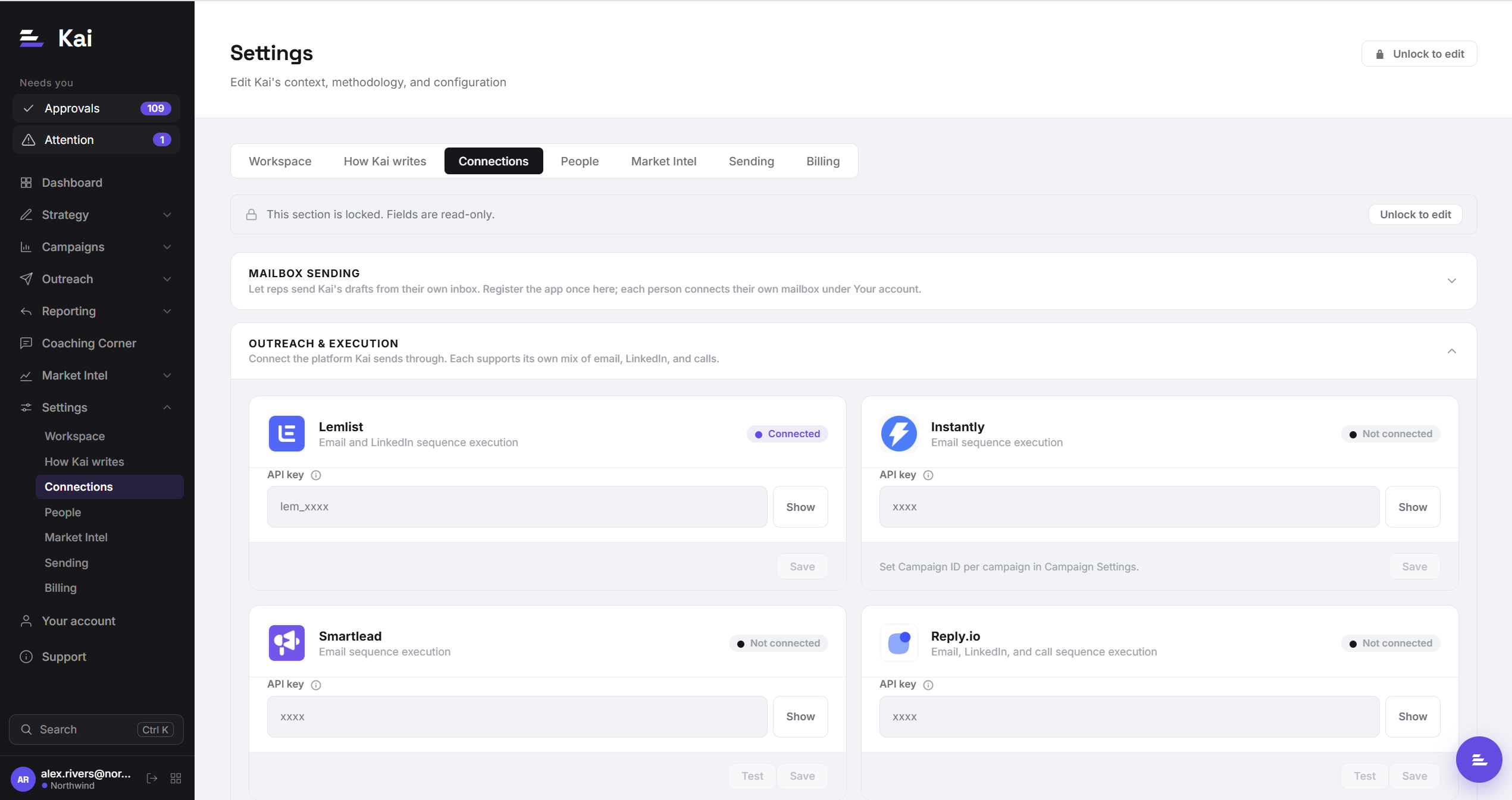
Connecting a tool
The pattern is the same for every integration:
lem_. In Anthropic's console it starts with sk-ant-.Per-category notes
AI provider
Pick one and connect it; Kai uses your selected provider for all generation in that workspace. If your company already has an enterprise agreement with a provider (data-processing terms, EU residency, and so on), use that account, and Kai inherits those terms automatically.
Outreach platform
Connect the platform your team already sends from. Two things to check on your plan:
- API access. Some vendors gate their API behind specific tiers.
- Contact database access. Account-based persona discovery and Always-on sourcing use your platform's B2B contact database where one exists (for example, Lemlist's B2B database is a paid add-on on some plans). If candidate discovery returns no results, this is the first thing to check.
CRM
The CRM handover fires when a reply is classified as a handraiser. Kai needs a key with permission to create contacts and deals. If your CRM admin uses granular scopes, that is the minimum set.
Sourcing & research
Firecrawl is used for account research: website structure, positioning, recent news. A free-tier key works for evaluation; production volume needs a paid plan.
Connection status
Each integration card shows a status badge: Connected when a valid key is present, Not connected otherwise. If a previously working connection starts failing (an expired key, a revoked token, a plan downgrade), sequences stop pushing and the error appears against the connection. Fix the key and the pipeline resumes; nothing is lost, pushes queue as approvals.