The approval flow
Nothing reaches a real inbox without a human reviewing it first. The Approvals tab is where you read every sequence Kai has written, edit anything that needs adjusting, and send it live. This is the most important step in the pipeline.
What you see in Approvals
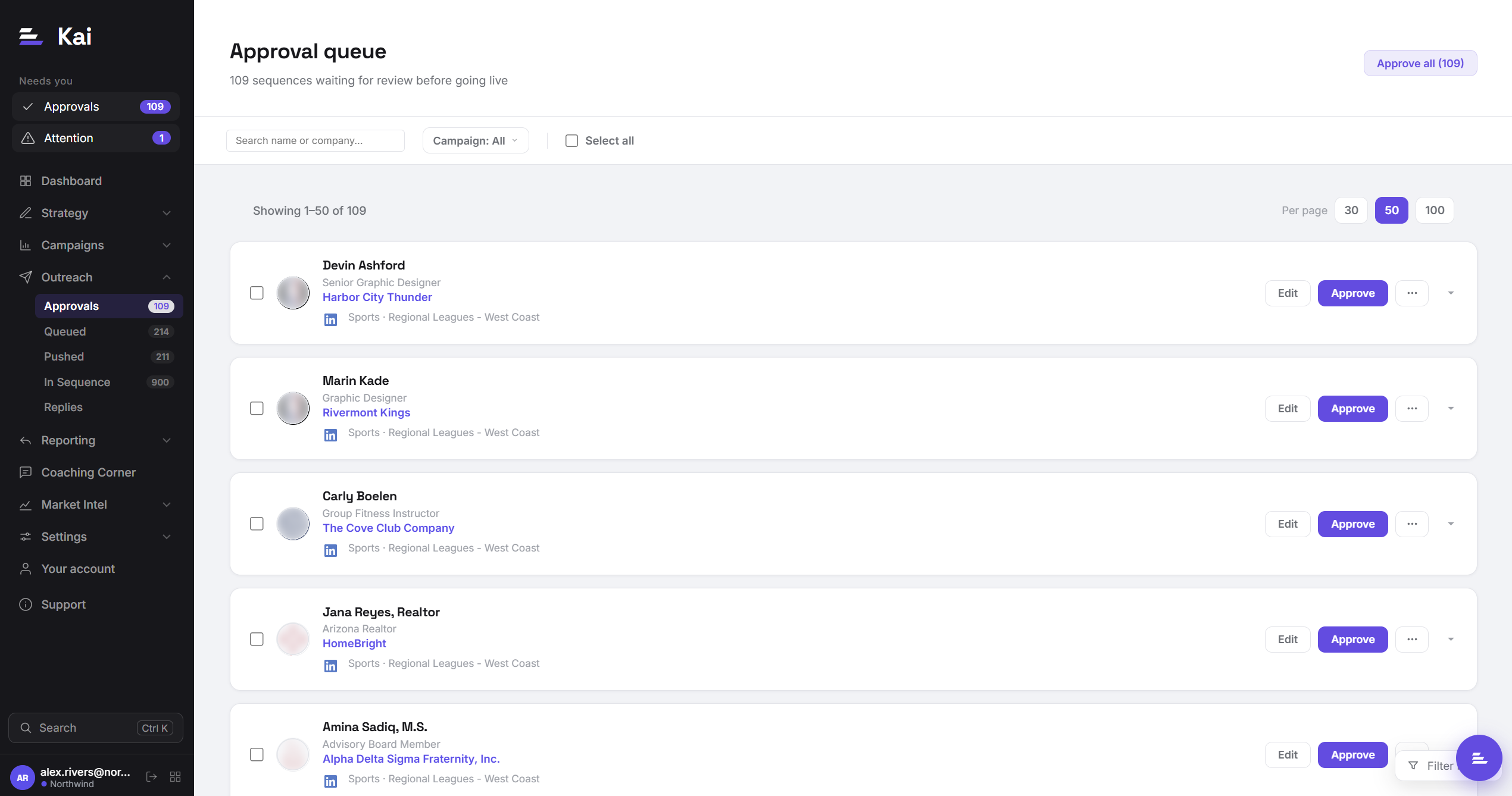
The queue lists one row per contact: name, title, company, and the campaign the contact came from. Rows are collapsed by default, so a queue of fifty is still one screen you can scan. Open a row with the chevron on the right to read the sequence Kai wrote.
Open a row and the sequence is split across four tabs: Emails, LinkedIn, Call brief, and Research.
Hi Allison,
Jellyfish just published your State of AI in Software Engineering report, and it is front and centre on the site. Smart move given how much interest there is in AI developer productivity right now.
One thing worth checking: if that report is being delivered as a PDF, the AI tools your buyers use daily to research engineering solutions cannot index or cite any of it.
Reviewing a sequence
For each card, read through all three tabs before approving. Here is what to look for in each one.
Emails tab
This shows every email in the sequence in order. Each card shows the subject line and the full body. Look for:
- The hook in Email 1 should reference something specific and real about this person or their company. If it is generic, use Regenerate.
- Each email should introduce a new angle. If two emails say the same thing in different words, that is a signal the research was thin.
- The tone should read like a well-prepared human rep, not a marketing email. No jargon, no bullet points, short sentences.
LinkedIn tab
This shows the connection note and any LinkedIn messages. The connection note must be under 200 characters and must reference something specific. If it reads like a generic "I'd love to connect," it will not land. Use Regenerate.
Call brief tab
This is for the rep, not the contact. It shows the hook Kai recommends opening with, the key talking points, and a set of prep questions based on what Kai found in its research. The brief is also visible in the HubSpot task created when the contact reaches the call step. Review it to make sure the research hook is accurate and specific.
Research tab
This tab is read-only. It shows exactly the research Kai wrote the sequence from: the account summary, the persona summary, and any technologies it identified. If the copy makes a claim, this is where you check it came from something real rather than a guess. There are no textareas here, because the research is evidence to validate against, not something to edit at approval time. If a hook in the email is not supported by anything in this tab, that is a strong reason to regenerate.
Any intent signals from your CRM (for an Intent-driven campaign, for example) are folded into these summaries in plain language rather than shown as raw field values, so you read the signal Kai acted on the way it understood it. If nothing was recorded, the tab says so rather than showing an empty panel.
Editing before approving
Every field in the sequence is editable before you approve. Click Edit on the card, then click into any textarea to make changes. When you click Approve after editing, Kai records that the sequence was human-edited. This feeds back into the learning loop so Kai can understand what the approved version looked like versus what it originally wrote.
Approve all
The Approve all button at the top of the Approvals page approves every sequence in the queue at once without editing. Use this only when you have already spot-checked a sample and are confident in the quality. It is not recommended for the first batch from a new campaign or after any change to the sequence in your outreach platform structure.
Not sending this one
There are three ways not to send a sequence, and they do different things. All three sit behind the three-dot menu on the row. The single button here used to be called Reject; it is now split, because "reject" did not say what happened to the contact afterwards.
Regenerate sequence
Re-researches the account and rewrites the sequence from scratch. The contact stays in the queue. Use this when the research was thin or the angle was wrong. It costs nothing extra, and the second attempt is often better because Kai picks up anything the crawler has found since the first pass, including the pages where a company publishes its own material.
Remove from queue
Takes the contact out of the queue and keeps everything: the research, the drafted sequence, the history. Use this when the contact is fine but not now, or when somebody else is already in a conversation with them. Nothing is lost and the work can be picked up again.
Delete contact
Permanently removes the contact, its research and its drafted sequence. It cannot be undone, and Kai asks you to confirm before it does anything. Use this when the contact should never have entered the campaign at all: a bad import, a wrong-fit account, a duplicate.
What happens when you approve
Approving a sequence immediately pushes it to your outreach platform. The contact is created as a lead in your campaign in your outreach platform, all the personalised variables are injected, and the sequence starts running on its configured schedule. The contact moves to In Sequence status in Kai and you will see them appear in the In Sequence tab. See Pushing to your platform for what to check after a push.